

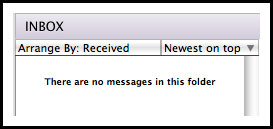
100. Keep my email inbox down to 5 emails or less for a month
Phew. I think I finally have this monster called "email" tamed. It's been a tough process but I finally figured out a way to complete #100 on my 101 in 1001 list.
In case you're interested to find out how I've accomplished this near-impossible feat, here's what I've done.
1. I use spamarrest as an initial filter for all my incoming emails. I get hundreds of spam emails each day and it's just out of control. I have my assistant look through the unverified emails that spamarrest catches on a daily basis to make sure no legitimate emails are getting stuck in there.
2. I set up a list of "email rules" that I gave to my assistant who filters through the emails that make it past spamarrest into my inbox. She replies to common emails, deletes others and sorts the ones that I need to deal with into 3 folders for me.
3. Among the many folders in my email program for sorting emails once I've dealt with them, I created four folders for emails I still need to deal with:
Phew. I think I finally have this monster called "email" tamed. It's been a tough process but I finally figured out a way to complete #100 on my 101 in 1001 list.
In case you're interested to find out how I've accomplished this near-impossible feat, here's what I've done.
1. I use spamarrest as an initial filter for all my incoming emails. I get hundreds of spam emails each day and it's just out of control. I have my assistant look through the unverified emails that spamarrest catches on a daily basis to make sure no legitimate emails are getting stuck in there.
2. I set up a list of "email rules" that I gave to my assistant who filters through the emails that make it past spamarrest into my inbox. She replies to common emails, deletes others and sorts the ones that I need to deal with into 3 folders for me.
3. Among the many folders in my email program for sorting emails once I've dealt with them, I created four folders for emails I still need to deal with:
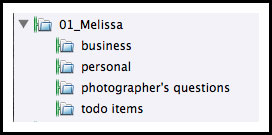
My assistant sorts emails into the top three folders--business, personal and photographer's questions. The business folder is the one I treat as my inbox. Along with my inbox, this is the folder I want to keep down to 5 emails or less by the end of each day. I'll explain more about how I do this in the next step. My personal folder doesn't have as much priority as my business folder. I always have emails in there waiting for a response and I do so when I can get around to it. The photographer's questions folder is similarly prioritized. Every week or two I'll answer one of those questions on my blog under the f.a.q. section.
4. The emails that end up in my business folder are dealt with in one of two ways. If the email is urgent, from a client or something that can be responded to in less than two minutes, I'll reply right away. If it is something that requires further action in the form of some type of task, I will file it in my totdo items folder and add it to my To Do list that I keep along the sidebar of iCal. I've tried various different solutions for my To Do list and iCal works beautifully. I can create different color-coded lists for me and each of my two assistants so we each can refer to what we need to do. I can also assign a priority level to each item and sort by priority. And I can add notes to each item if need be. Once I get to the point of working on a certain task on my To Do list, I can find the relevant information that I need in the todo items folder in my email program.
Wow. Who knew an email system could be so complex, huh? But that's what it takes for me to stay organized and on top of the hundreds of emails I receive each day. I feel so good about checking this one off the list!!
4. The emails that end up in my business folder are dealt with in one of two ways. If the email is urgent, from a client or something that can be responded to in less than two minutes, I'll reply right away. If it is something that requires further action in the form of some type of task, I will file it in my totdo items folder and add it to my To Do list that I keep along the sidebar of iCal. I've tried various different solutions for my To Do list and iCal works beautifully. I can create different color-coded lists for me and each of my two assistants so we each can refer to what we need to do. I can also assign a priority level to each item and sort by priority. And I can add notes to each item if need be. Once I get to the point of working on a certain task on my To Do list, I can find the relevant information that I need in the todo items folder in my email program.
Wow. Who knew an email system could be so complex, huh? But that's what it takes for me to stay organized and on top of the hundreds of emails I receive each day. I feel so good about checking this one off the list!!
Comments


